Managing your workspace settings
A tour of the Settings area — where everything lives, on every device.
Your workspace's identity, defaults, and document setup all live under Settings. This page is a map of what's there and where to find each thing — every setting has its own dedicated page linked below.
Finding Settings
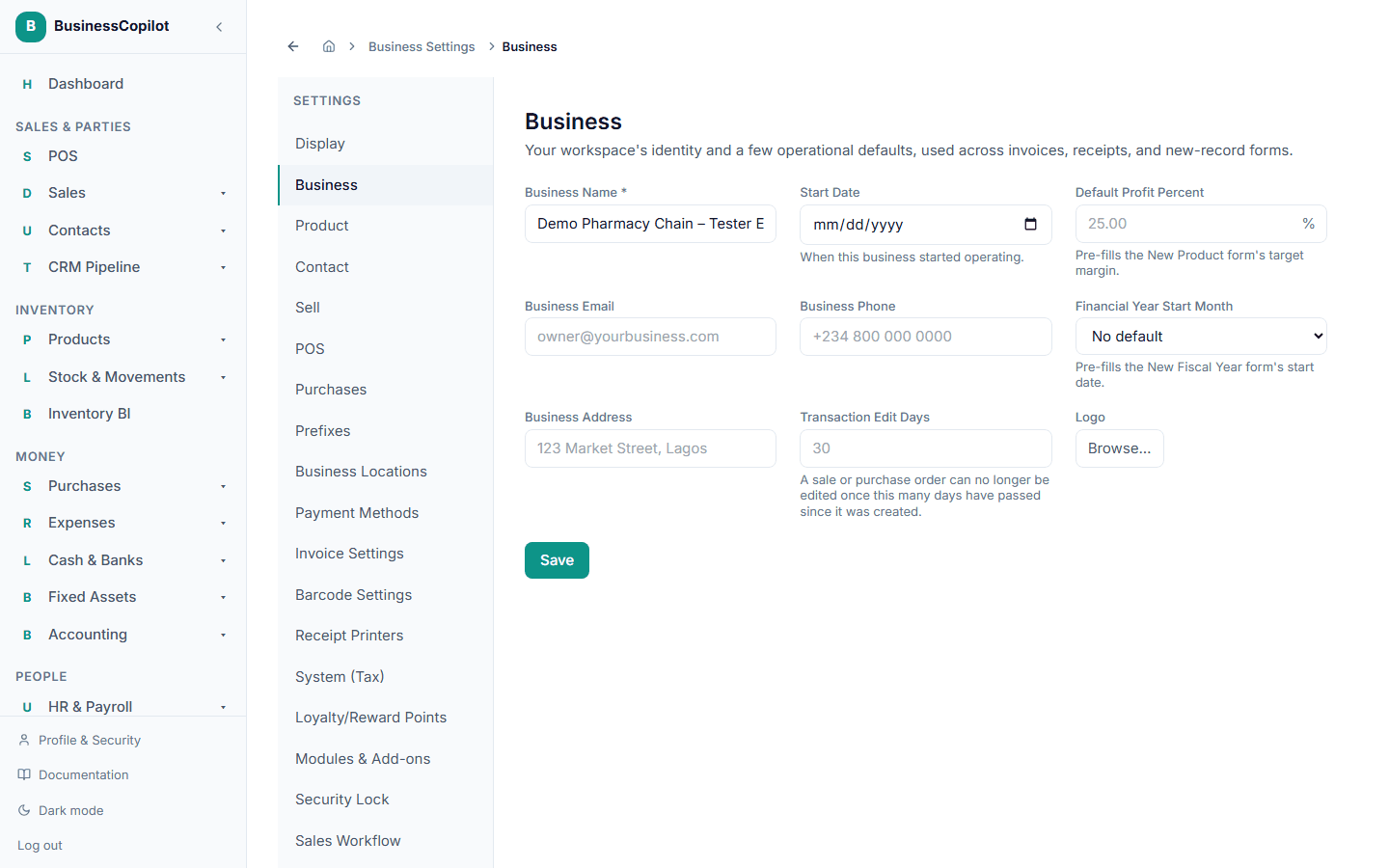
Web and Desktop: click Settings in the left sidebar. Every setting listed below appears as its own item in that list.
Mobile app: tap More → Settings. You'll see a shorter list — tapping Business Settings opens a second screen with the rest, grouped together, since a long list doesn't fit well on a phone.
What's in Settings
| Setting | What it controls |
|---|---|
| Business Settings | Your business identity, plus defaults for products, contacts, selling, the till, and purchasing |
| Payment Methods | Every way a sale or purchase can be paid |
| Business Locations | Your branches — see Branches / locations below |
| Invoice Settings | What appears on every invoice and purchase order document |
| Barcode Settings | How barcodes look on labels and receipts |
| Prefixes | How every auto-generated document number is formatted |
| Receipt Printers | Silent, no-dialog printing on this device |
| System (Tax) | Your tax codes — see Setting up VAT |
| Loyalty/Reward Points | Your loyalty tier thresholds — see Loyalty tiers |
| Modules & Add-ons | Your plan and add-ons — see Understanding your plan |
The last three are shortcuts into pages that already exist elsewhere in the app — they're listed here for convenience, not duplicated as separate features.
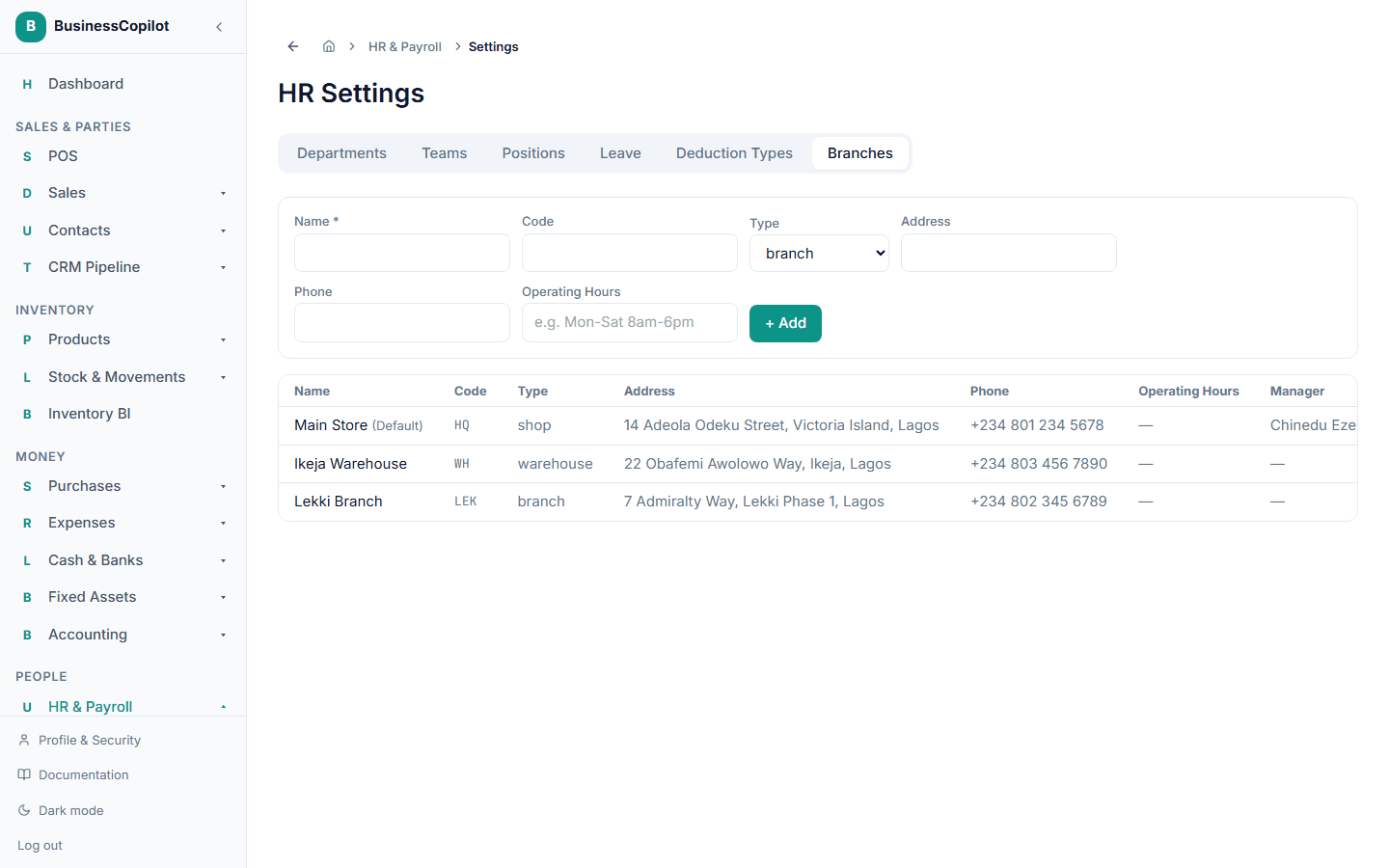
Branches
Go to HR → Settings → Branches (Web/Desktop) or Business Locations in Settings on mobile to add, edit, or remove branches — name, code, type, address, phone, and operating hours, plus assigning a branch manager. See Branches / locations for what a branch is and how access to it works.