Follow-ups
Track the calls, checks and refills you owe a patient — with priorities, due dates, escalation, and one click to turn a follow-up into an appointment.
A follow-up is a task about a patient that isn't a booked appointment yet — "call about her metformin refill", "check how he's coping with the new tablets", "review the lab result". It has a due date, a priority and, if you like, someone assigned to it, so nothing gets forgotten.
You need View on Patient Engagement (Appointments) to see follow-ups, Create to add or book from them, Edit to complete, cancel or escalate, and Delete to delete.
Finding them
- Go to Clinical Suite → Follow-ups (Web and Desktop) or the Follow-ups chip (mobile app).
- A patient's own follow-ups are also on their Appointments tab, under Follow-ups.
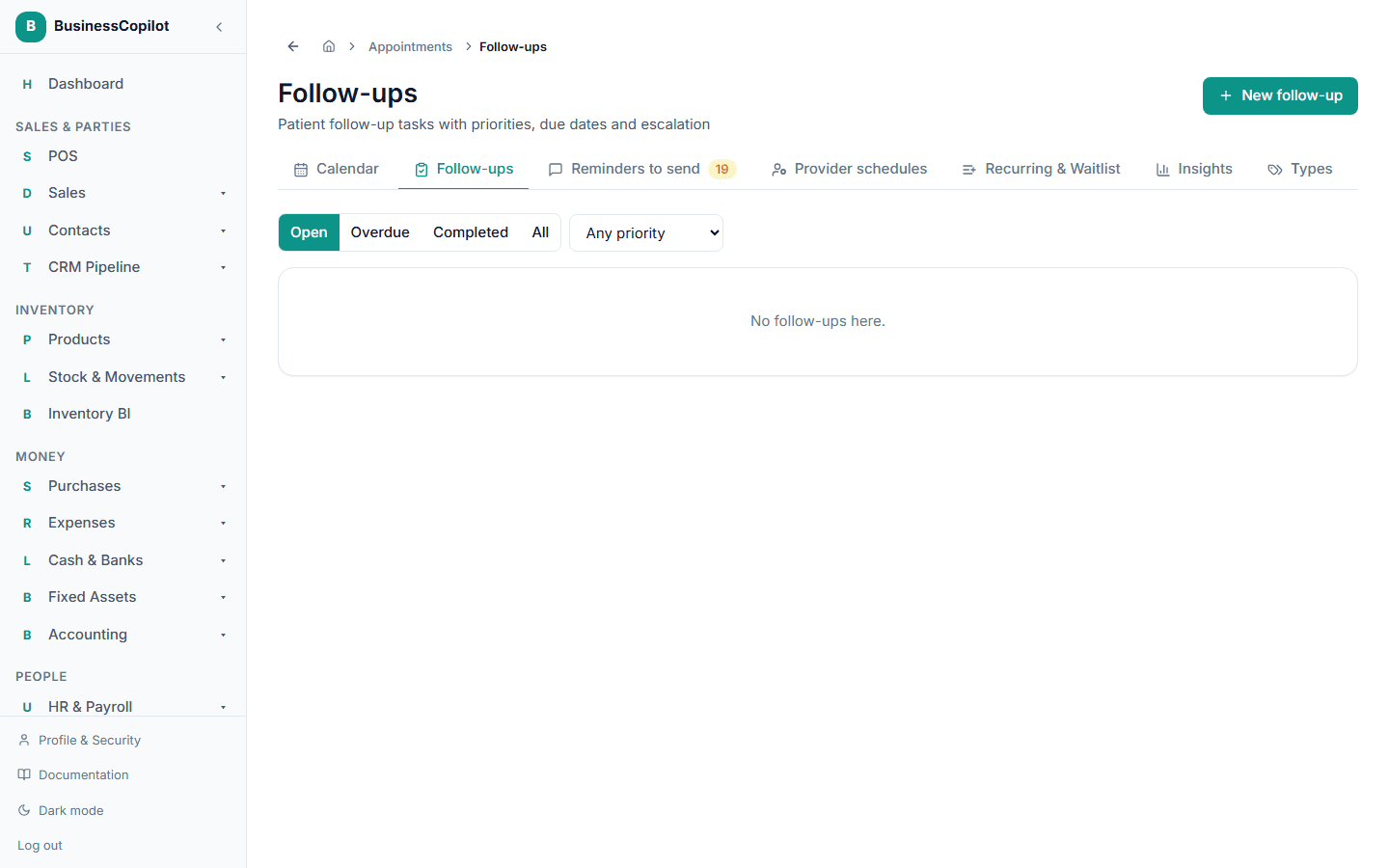
Use the filter buttons at the top: Open, Overdue, Completed or All. A Priority dropdown (Any priority, Low, Normal, High, Urgent) narrows it further. An overdue follow-up carries an Overdue tag.
Each row shows the title, the patient (select the name to open their record), the type, priority, due date, who it's assigned to, and any objectives. A refill request also shows "Refill: Metformin 500mg — 60 tablets".
Adding a follow-up
-
Select New follow-up (on the Follow-ups page, or on a patient's Appointments tab).
-
Choose the Patient.
-
Give it a Title, for example "Call about metformin refill".
-
Choose the Type:
Type Use it for Post-visit check Asking how someone is after a visit. Refill request A medicine refill. Extra fields appear — see below. Adherence check Checking the patient is taking their medicines. Lab review Going over a lab result. Other Anything else. Your own follow-up types appear at the end of this list — see Your own appointment and follow-up types.
-
Choose the Priority: Low, Normal, High or Urgent.
-
Set the Due date and Due time.
-
Optionally, choose who to Assign to — leave blank to keep it unassigned.
-
Optionally describe the Objectives — "What should be achieved?"
-
Select Create follow-up.
For a Refill request, also fill in Medication (for example "Metformin 500mg") and Quantity (for example "60 tablets").
If something's missing you'll be told: "Choose a patient", "Give the follow-up a title" or "Choose a due date".
What you can do with a follow-up
Each open follow-up has these buttons:
| Button | What it does |
|---|---|
| Complete | Closes it as done. Add an optional Note, then select Mark completed. If your workspace has AI clinical assistance on, an Ask AI button next to the note field drafts a short generic starting note for you to review and edit — see AI clinical reasoning. |
| Book appointment | Opens the booking form titled Book appointment from follow-up. Once you book, the follow-up's status becomes Booked. |
| Escalate | Raises its priority — see below. |
| Cancel | Closes it without doing it. A Reason is required ("A reason is required to cancel."). |
| Delete | Moves it to the Recycle Bin, where it can be restored. |
| History | Shows every escalation: who, when and why. With none it says "No escalations yet." |
Statuses are Open, Completed, Cancelled and Booked.
Escalating
Escalate when something is more urgent than it looked, or needs someone else's attention.
- Select Escalate.
- Type a Reason — required ("Why is this being escalated?").
- Optionally choose someone under Also hand it to to reassign it. Leave it on Keep the current assignee to keep it with the same person.
- Select Escalate.
The dialog tells you what will happen: "Priority goes from Normal to High." A follow-up that is already Urgent can't go higher — the dialog says so, and you need to reassign it to someone to escalate it further.
Automatic escalation
If an open follow-up stays overdue, BusinessCopilot raises its priority one level for every 48 hours it stays overdue, up to Urgent. It only changes the priority — it never reassigns the follow-up. Each step is recorded in the History as an automatic escalation. Changing a follow-up's due date restarts the 48-hour clock.
Alerts
Every morning BusinessCopilot checks your open follow-ups and keeps one alert per branch in your Alert Center for each of these:
- Due today — a low-key alert, for example "3 follow-ups are due today".
- Overdue — a warning, for example "2 follow-ups are overdue".
- Overdue and urgent — a critical alert, for example "2 follow-ups are overdue (1 urgent)".
It's one alert per branch, not one per follow-up, so a long list of overdue follow-ups never pushes your other alerts out of view. The numbers update each morning, and an alert clears itself when nothing at that branch is due or overdue any more. To see which follow-ups they are, open the Follow-ups page and choose Overdue.