Adding a customer while you sell
Create a new customer from the checkout screen or the Add Sale form without leaving the sale.
If a customer isn't in your contacts yet, you don't have to leave the sale to add them. Create them right where you are, and they are selected for the sale as soon as you save.
At the checkout screen
- Go to Sales → POS and add the items to the cart as usual.
- Next to the customer field, select the + button.
- Fill in the customer's details. Only the name is required. A phone number is a good idea, because it lets BusinessCopilot warn you if the customer already exists.
- Select the Create button at the bottom of the form.
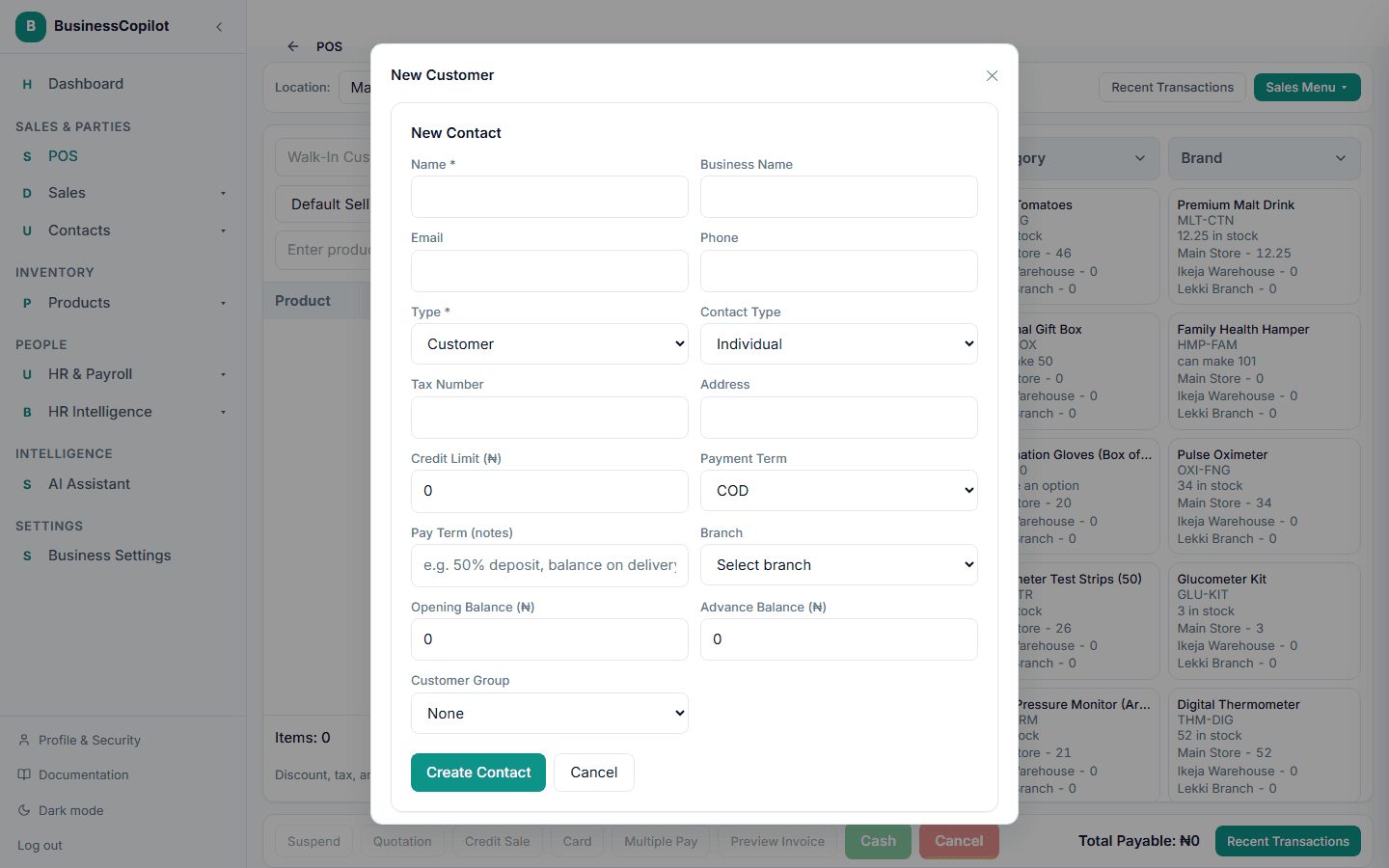
The pop-up closes, the new customer appears in the customer field, and your cart, price group and discounts are exactly as you left them. The customer is saved as a real contact: they appear in Contacts → Customers, so you can record credit sales and payments against them, and their history builds up from this sale.
On the Add Sale, Draft and Quotation forms
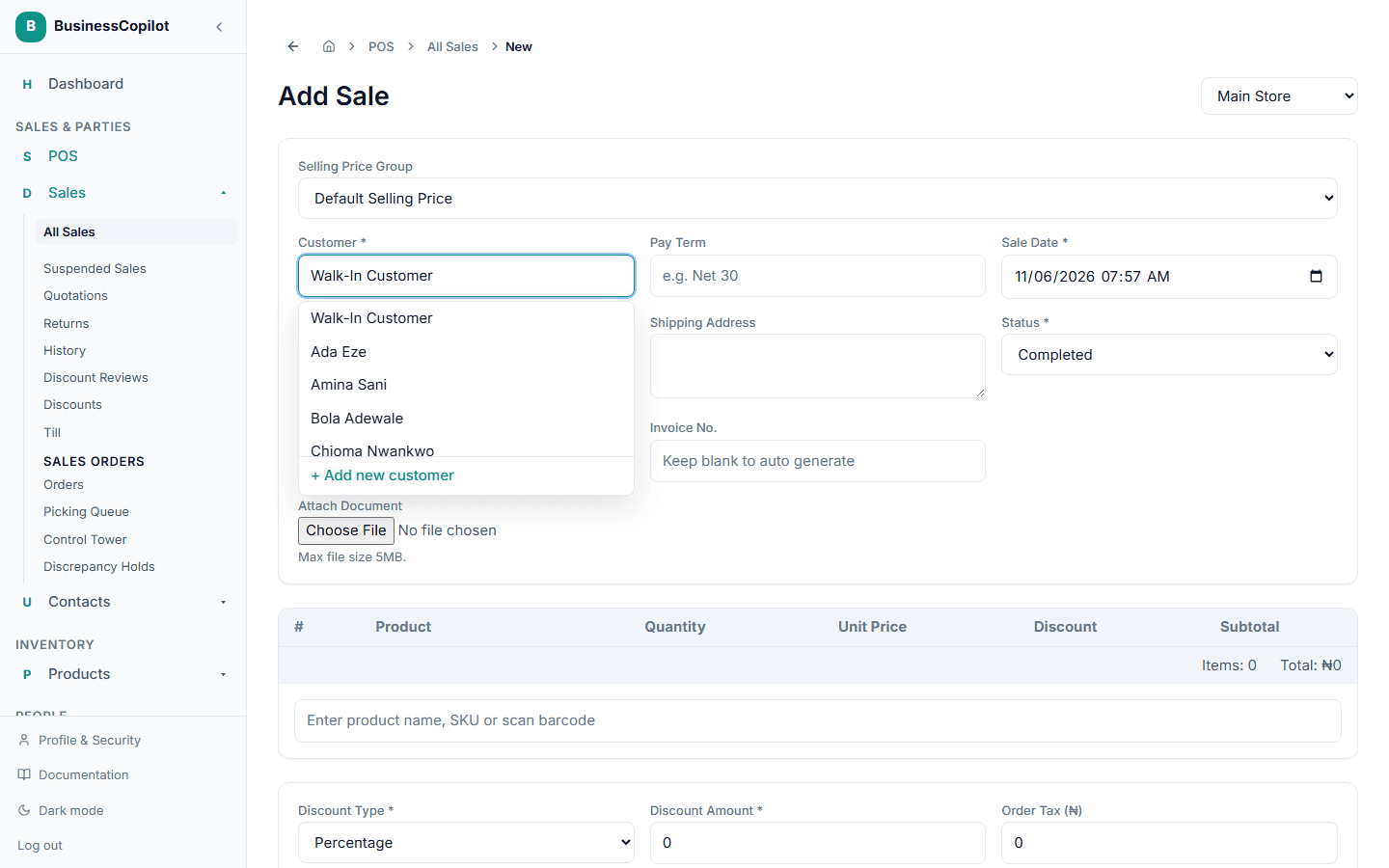
On the Add Sale, Add Draft and Add Quotation forms, open the Customer field and choose + Add new customer at the bottom of the list. The same form opens, and the new customer is filled into the field when you save.
On the mobile app
Open Select Customer and choose New customer at the top of the sheet. On the Add Sale form, choose + New customer under the Customer field.
If the customer already exists
If you enter a phone number that already belongs to a customer, you'll see "A customer with this number already exists" with two choices:
- Use that customer, which selects them for the sale without creating a duplicate.
- Save as a new customer anyway, if it really is a different person who shares the number.
Good to know
- The + only appears for people whose role can create contacts. If you don't see it, ask your Owner.
- On the desktop app, the + is greyed out while the app is working offline, because a new customer has to be saved on the server. Sell to Walk-In Customer and add them once you're back online.
- A customer you create here belongs to the location you're selling from, the same as one created from Contacts.