Barcode Settings
How every barcode looks — on product labels and on the sale receipt.
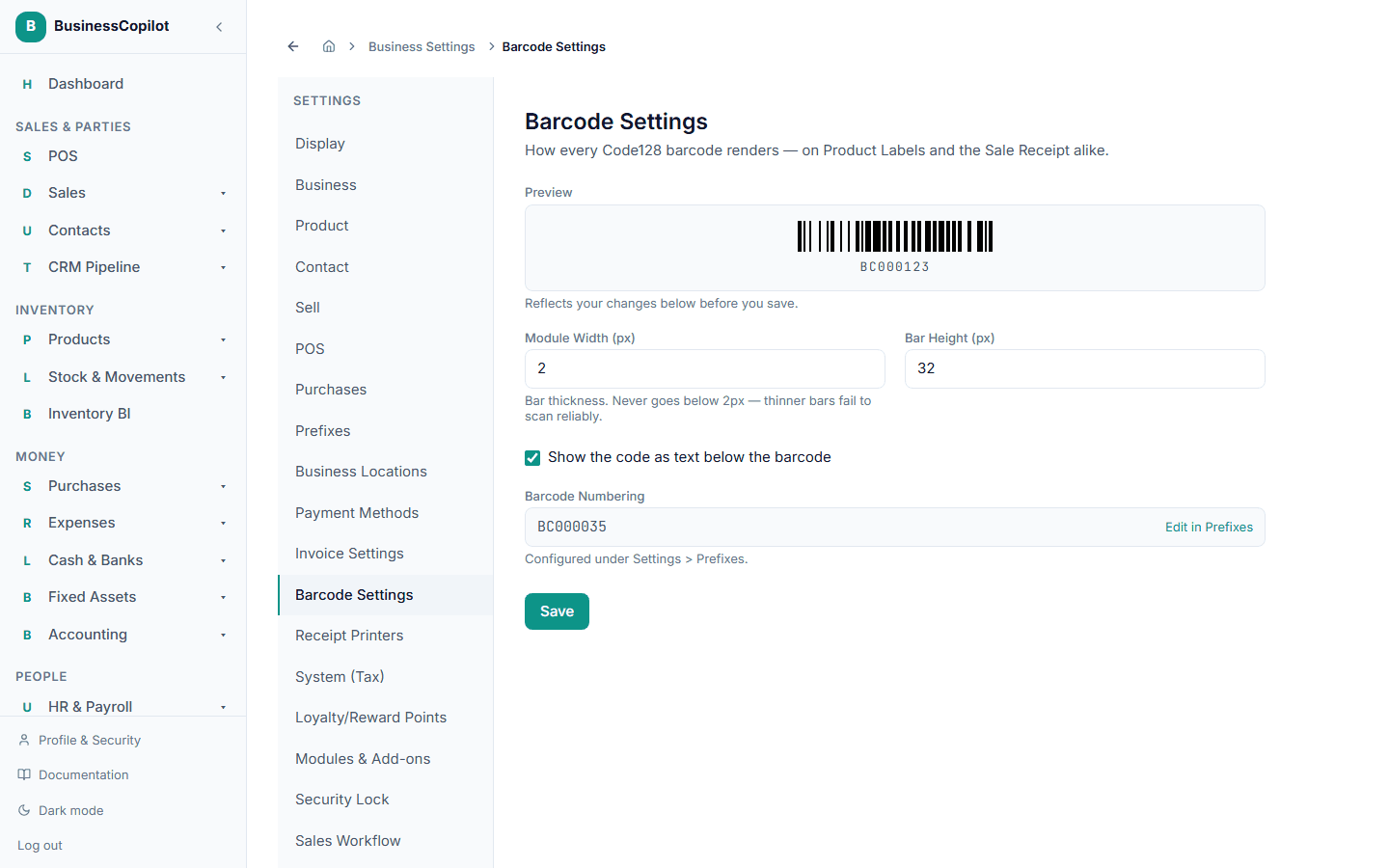
Settings → Barcode Settings controls how every barcode graphic renders, wherever one appears — product labels and the sale receipt both read the same setting, so they never look inconsistent with each other.
What you can set
- Module Width (px) — how thick each bar is. There's a minimum of 2px enforced automatically — thinner bars don't scan reliably, so the app won't let you go below it.
- Bar Height (px) — how tall the barcode is.
- Show the code as text below the barcode — toggles whether the human-readable number prints underneath the bars.
A live preview on the page updates as you change these, before you save.
Barcode numbering
The barcode number itself (not its appearance) is shown here as a read-only preview. To change its prefix or digit count, go to Prefixes.