Receipt Printers
Set up silent, no-dialog printing for your thermal receipt printer.
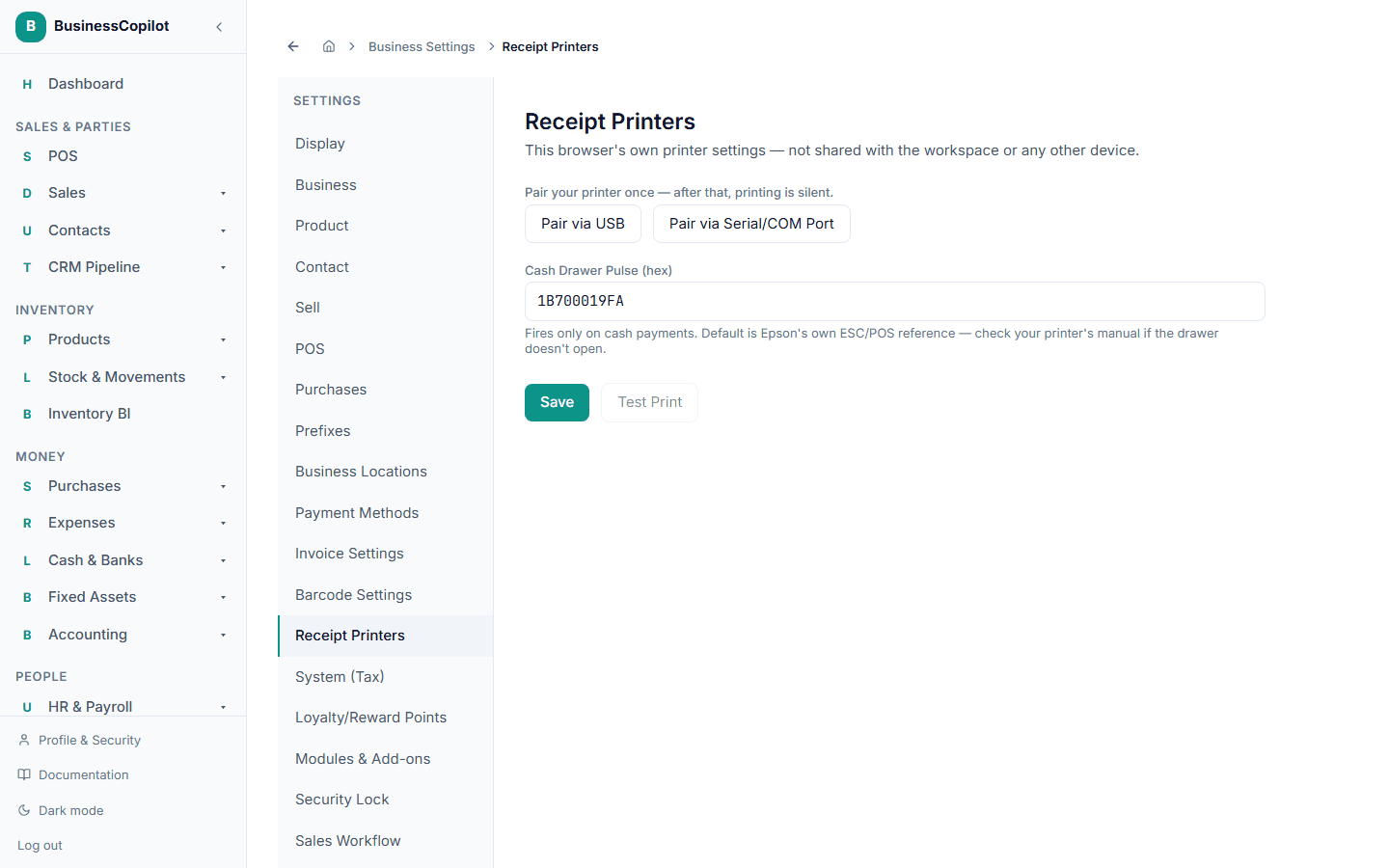
Settings → Receipt Printers lets you connect a thermal receipt printer so receipts print instantly, with no print dialog popping up on screen.
This is a setting for this device only — it's not shared with your workspace or with any other computer. If you print from more than one till, each one needs its own setup.
Without this set up, printing still works exactly as before — clicking Print opens the normal print dialog, the same as printing anything else.
Only silent printing cuts the paper. A thermal printer's auto-cutter only fires as part of the silent print sent by this setup. The normal print dialog has no way to tell the printer to cut — if receipts aren't set up here, you'll need to tear each one off by hand even though everything else about the receipt looks correct.
Availability by platform
| Platform | Silent printing | How |
|---|---|---|
| Desktop app | Yes | Connects to a printer already installed on Windows, or directly to a serial/USB port |
| Web (Chrome, Edge) | Yes | Pair a printer once via USB or a serial/COM port |
| Web (Safari, Firefox) | Not available | These browsers don't support the technology this needs — printing uses the normal dialog |
| Mobile app | Not available | Receipts are shared/printed using your phone's own share sheet |
Setting up on the Desktop app
- Go to Settings → Receipt Printers.
- Under Printer, choose your printer from the list. If your printer is already set up as a normal Windows printer, it'll be listed by name. If it isn't, look for it under the Serial/USB entries instead.
- Check the Cash Drawer Pulse value — the default works for most Epson-compatible printers. Only change it if your printer's manual specifies something different.
- Click Save.
- Click Test Print to confirm it works.
Once set up, the cash drawer only pops open on a real cash payment — never on a test print, and never on a card or transfer sale.
Setting up on Web
Available in Chrome and Edge only.
- Go to Settings → Receipt Printers.
- Click Pair via USB or Pair via Serial/COM Port, depending on how your printer connects. Your browser will show a device picker — select your printer and allow access.
- Set the Cash Drawer Pulse value if your printer needs something other than the default.
- Click Save, then Test Print to confirm.
You only pair once per browser — after that, printing is silent every time. If you clear your browser's site permissions, or switch to a different browser or computer, you'll need to pair again.
📸 Screenshot needed: the Pair Printer buttons and the browser's device picker.
If a print doesn't come out
If the printer is unplugged, powered off, or a permission was revoked, the app automatically falls back to the normal print dialog — you'll still be able to print, just with the popup you're used to. Nothing about a sale is ever blocked by a printer problem.
If the receipt prints but doesn't cut
This means you're on the normal print dialog, not silent printing — the two most common reasons:
- The printer hasn't been set up under Receipt Printers yet, or the pairing was lost (see above).
- You're on Safari or Firefox, where silent printing isn't available at all (see the table above) — use Chrome or Edge instead.
If receipts keep falling back to the dialog when you expect silent printing:
- Confirm the printer is powered on and connected.
- Re-open Settings → Receipt Printers and try Test Print again.
- On Web, check that your browser still shows the site as having permission to the device (this can be revoked if you clear site data).
- On Desktop, confirm the printer still shows as ready in Windows' own Printers & Scanners settings.