Understanding your accounts
The cash and bank accounts BusinessCopilot tracks for you, and what happens to a payment before it reaches one.
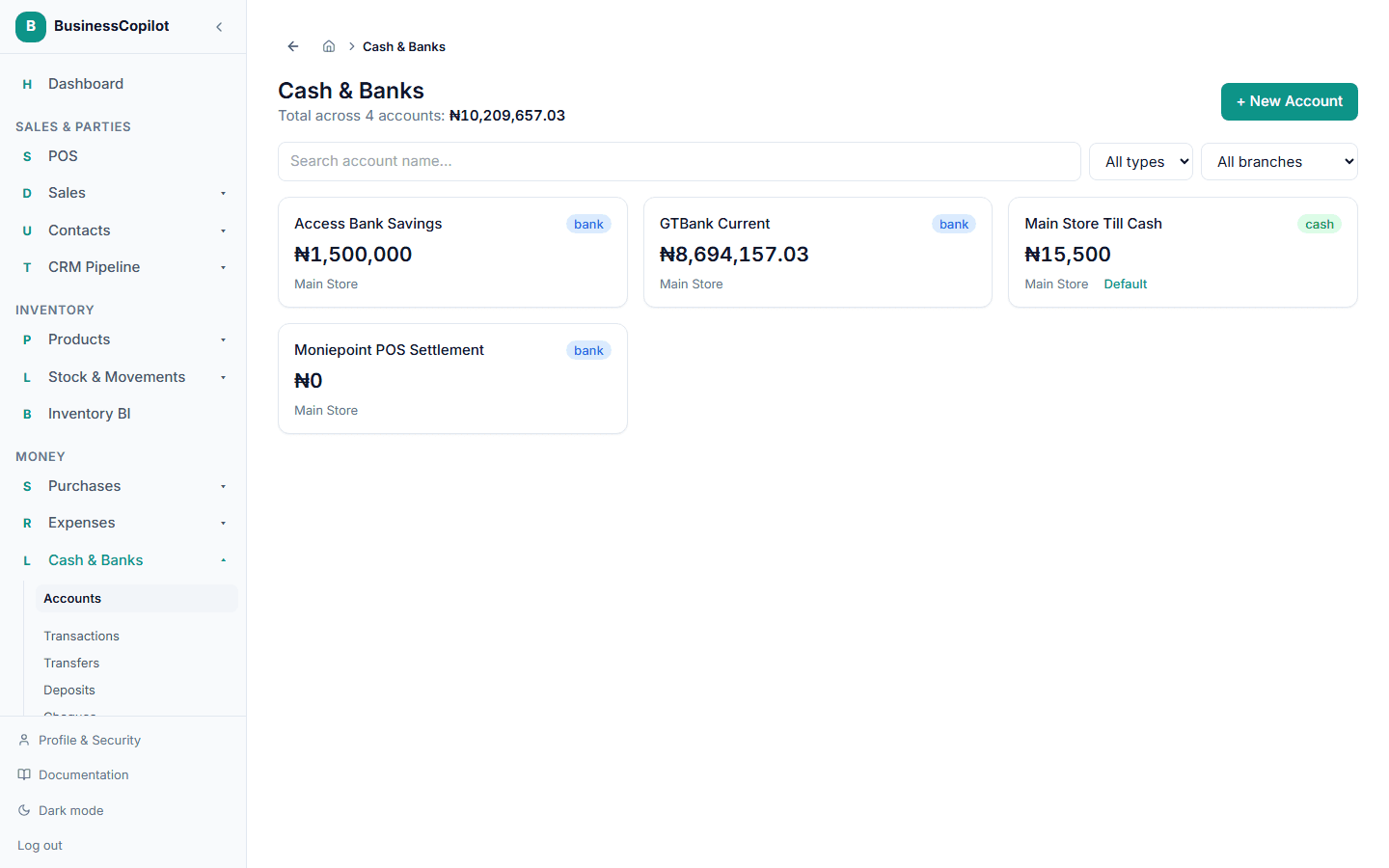
Go to Cash & Banks to see every cash drawer and bank account your business has, side by side with their current balances.
Adding an account
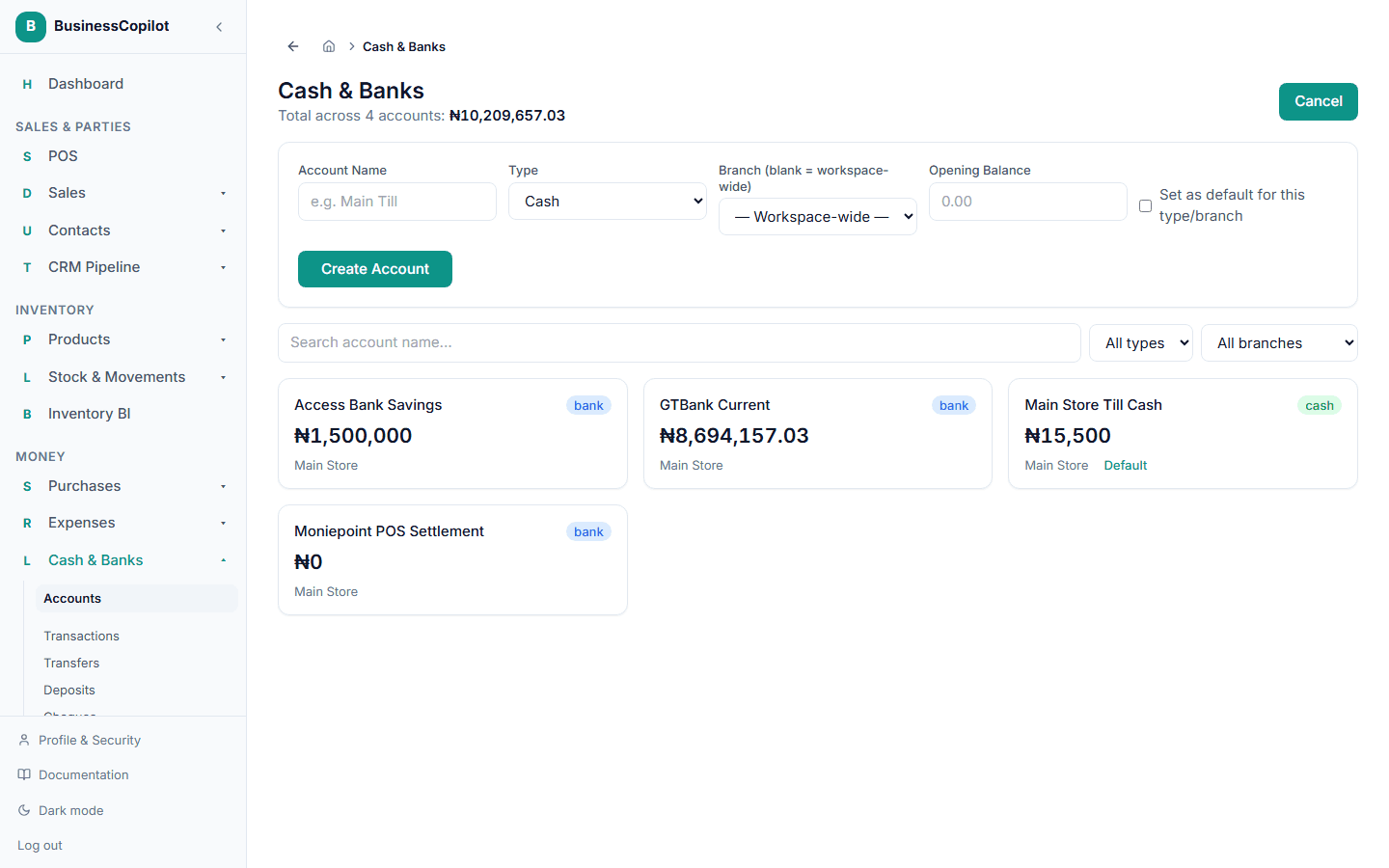
- Select + New Account.
- Enter a name (e.g. "Main Till" or "GTBank Current Account").
- Choose the type — Cash or Bank.
- Pick a branch, or leave it as workspace-wide if it's shared across locations.
- Enter an opening balance if you're bringing in an account that already has money in it.
- For a bank account, add the bank name and account number.
- Select Create Account.
Where a sale's money actually goes
When a customer pays by card or the payment doesn't land straight in a till, BusinessCopilot doesn't guess which of your accounts it belongs to right away — it holds it in a waiting area until you (or your bank statement) confirm it's actually shown up. You'll see this reflected once it's matched during reconciling your bank statement; the deeper mechanics of how that waiting area works are covered in Understanding Undeposited Funds in the Accounting Guide.
Choosing an account when you record a payment
Anywhere you record a payment to or from a contact — paying a supplier, receiving from a customer — you can pick exactly which of these accounts the money moved through, instead of leaving it to the default. See Paying a supplier for where this shows up on the purchasing side.