Booking an appointment
Book a patient with a provider — pick a time from the open slots, understand the warnings, and book outside working hours when you really must.
You need the Create permission on Patient Engagement (Appointments). Before you start, the provider must have a schedule — see Setting provider schedules and time off.
Steps
-
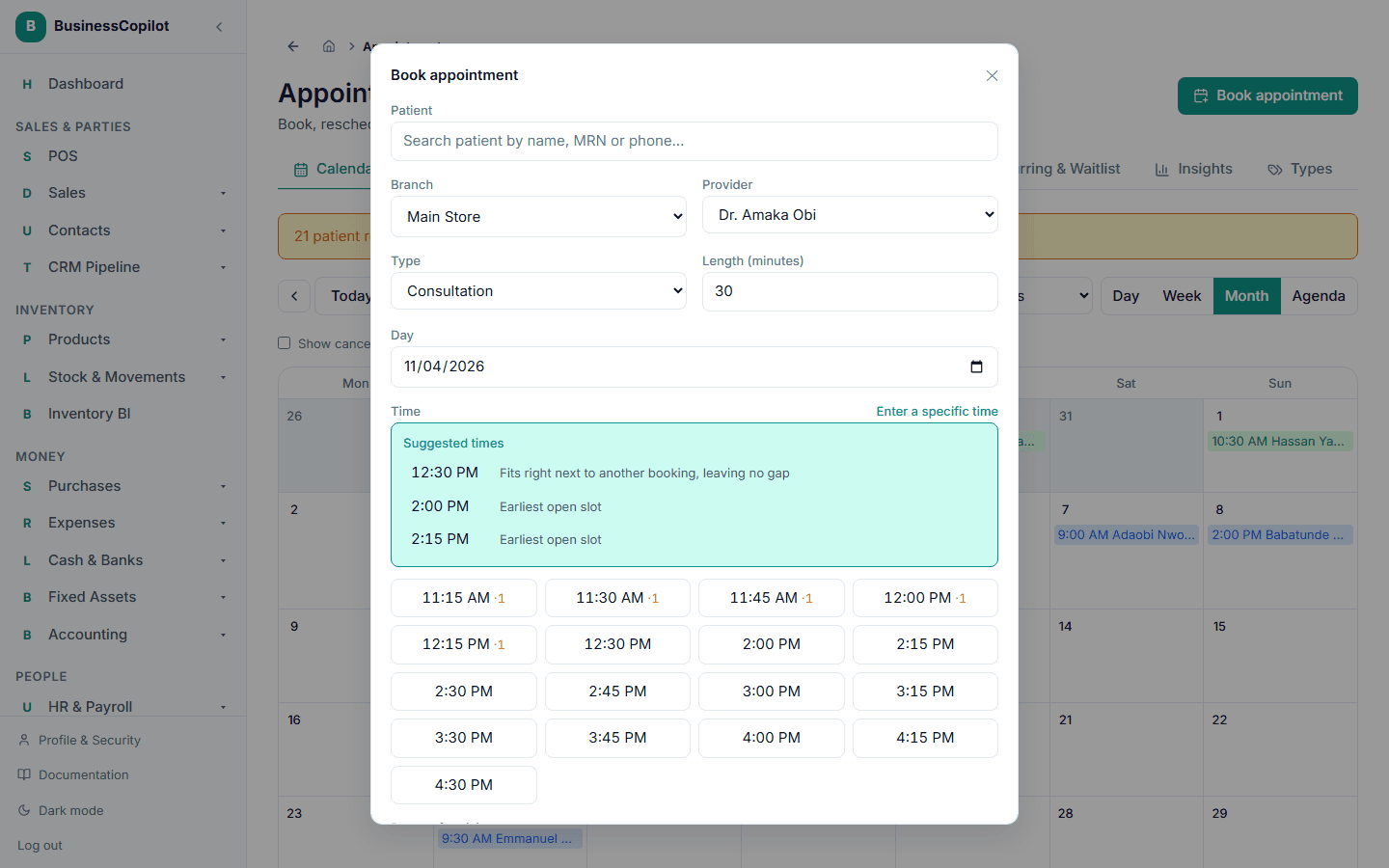
Go to Clinical Suite → Appointments and select Book appointment. You can also start from a patient's Appointments tab (the patient is already chosen), or by clicking an empty time on the calendar (the day and time are already filled in).
-
Choose the Patient. Type to search by name or MRN. Choosing a patient fills in their branch for you.
-
Choose the Branch.
-
Choose the Provider. Only providers with a schedule at that branch are listed. If none appear it says "No provider has a schedule at this branch yet — set one up under Provider Schedules."
-
Choose the Type. Each type has a usual length, filled in for you:
Type Usual length Consultation 30 minutes Medication review 60 minutes Follow-up visit 20 minutes Vaccination 15 minutes Other 30 minutes Your own types appear at the end of this list — see Your own appointment and follow-up types.
-
Change Length (minutes) if this visit needs longer or shorter. An appointment can be at most 8 hours.
-
Pick the Day.
-
Pick a Time from the open slots (see below).
-
Add a Reason for visit if you like — it's optional.
-
Select Book appointment.
The appointment is booked, and the patient's reminders are queued automatically — see Patient reminders.
Picking a time
Once you've chosen the branch, provider and day, the form shows the open slots for that provider. Slots start every 15 minutes (:00, :15, :30, :45), fit inside their working hours, skip their breaks and time off, and never start in the past.
Suggested times
If there are open slots, a box at the top called Suggested times shows up to three of the best ones, each with a reason:
- "Fits right next to another booking, leaving no gap"
- "Around the time this patient usually comes"
- "Earliest open slot"
Select one to pick it. See Suggested times and overbooking hints for how they're chosen. You're never forced to pick a suggestion — every open slot is still in the grid below.
Slots that are already taken
A slot with a small number after it, like 10:00 AM ·1, already has that many appointments overlapping it for this provider. You can still book it. BusinessCopilot allows overlapping appointments on purpose — some providers see two patients at once — and just warns you: "The provider already has 1 appointment(s) overlapping this time. You can still book it."
A ◆ on a slot means the booking already there is likely to be missed and hasn't been confirmed, so a second booking there is reasonable. That's only a hint — see Suggested times and overbooking hints.
If the patient already has another appointment overlapping the time you chose, you'll get a warning about that too.
When the day is full or the provider isn't working
- If the provider doesn't work that day, the form says so.
- If there are no open slots left that day, it says "No open slots left this day."
In both cases, if there is a later day with room, a button appears: Next available: Tue 22 Sep from 9:00 AM — go there. Select it to jump straight to that day. It looks up to 14 days ahead.
Entering a specific time
Select Enter a specific time above the grid to type any time yourself (in 15-minute steps). Select Pick from open slots to go back.
Booking outside working hours
If you enter a time outside the provider's hours, during their break, or during time off, BusinessCopilot won't book it straight away. After you select Book appointment it explains: "That time is outside the provider's working hours (or during their time off)."
To go ahead:
- Tick Book it anyway — this is recorded and audited.
- Type a Reason for the override — for example "walk-in" or "patient travelling". A reason is required.
- Select Book appointment again.
The appointment is marked as booked outside hours, with your reason, and the calendar and detail view show it. This is recorded so a manager can see who did it and why.
Rules the form enforces
- You can't book a time that has already passed.
- The provider must be bookable at the branch.
- You can only book at a branch you have access to.
Booking a repeating appointment
Tick Repeat this appointment at the bottom of the form to make it repeat. See Recurring appointments.
Rescheduling and follow-ups
Rescheduling uses the same form — see Managing an appointment. A follow-up can be turned into an appointment with the same form — see Follow-ups.
Related
Setting provider schedules and time off
Tell BusinessCopilot when each provider works, when they're on break, and when they're away — this decides which times can be booked.
Using the calendar
See every appointment on a Day, Week, Month or Agenda view, filter by branch and provider, and book by clicking a time.