The Picking Queue
Assign pickers to order lines, confirm picks, and report discrepancies when actual stock does not match expected quantities.
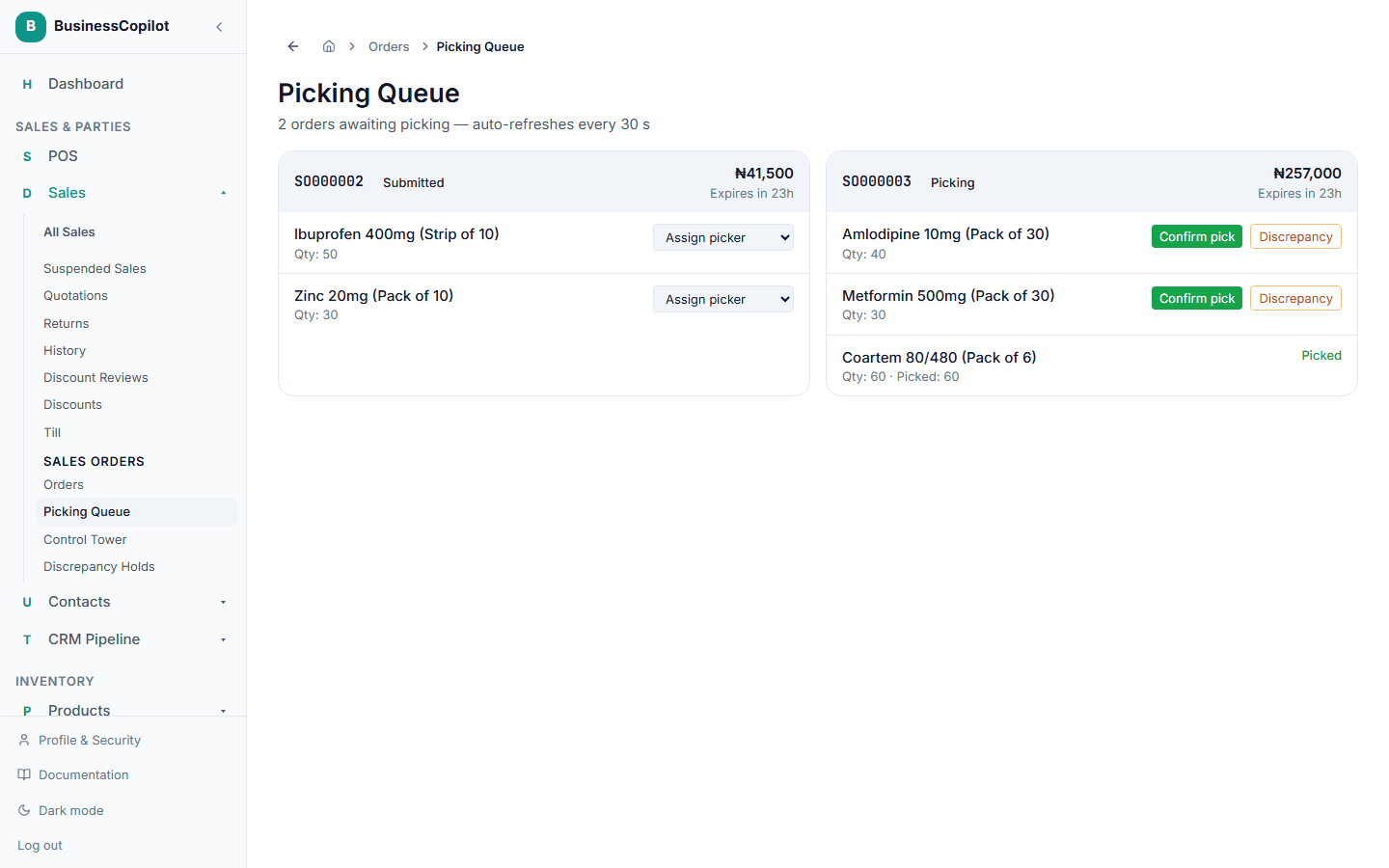
The Picking Queue (Sales Orders → Picking Queue) shows every submitted order that still has lines waiting to be picked. It refreshes automatically every 30 seconds so the warehouse team always sees the latest state.
Who can use the Picking Queue?
Any team member whose role has been granted the picking_queue.view permission can see the queue. Typically this is Cashiers, Sales Representatives, Managers, and Owners.
How picking works
1. Assign yourself to a line
Each order card in the queue shows its lines. If a line has no picker yet, an Assign to me button appears. Click it to claim that line — you are now responsible for picking it from the warehouse.
A single order can have multiple lines picked by different people at the same time.
2. Confirm the pick
Once you have physically retrieved the stock, click Confirm pick on that line. The quantity is recorded and the line is marked as picked.
When every line in the order is confirmed, the order moves to Picked status and appears in the Control Tower ready for release.
3. Report a discrepancy
If the actual quantity you find in the warehouse does not match what was ordered, click Discrepancy on that line.
An inline form expands in place — enter the quantity you actually found and click Report. You do not need to leave the page. The order moves to On Hold and a resolution is required before goods can be released. See Discrepancy Holds.
Desktop note: The Discrepancy button opens an inline input directly on the page — no browser prompt appears.
Delayed picking
If an order has been in Picking status for too long without progress, it appears in the Delayed Picking tile in the Control Tower. A manager can monitor these and reassign or escalate as needed.