Recurring appointments
Book a repeating appointment — daily, weekly or monthly — and change or stop the whole series in one go.
Some patients come on a regular pattern: a weekly injection, a monthly blood-pressure check, a daily dressing change. Instead of booking each visit one by one, you book it once and repeat it.
You need Create on Patient Engagement (Appointments) to start a series, Edit to change or cancel part of it, and Delete to stop it.
Starting a repeating appointment
- Open the Book appointment form (Booking an appointment) and fill it in as normal — patient, branch, provider, type, first day and time.
- Near the bottom, tick Repeat this appointment.
- Choose the Frequency:
- Daily
- Weekly — repeats on the same weekday as the day you picked. The form shows it: "Set by the day you picked above."
- Monthly — set the Day of month, from 1 to 28. (It stops at 28 so the day exists in every month.)
- Optionally set an End date. Leave it blank to repeat until cancelled.
- Select Create series.
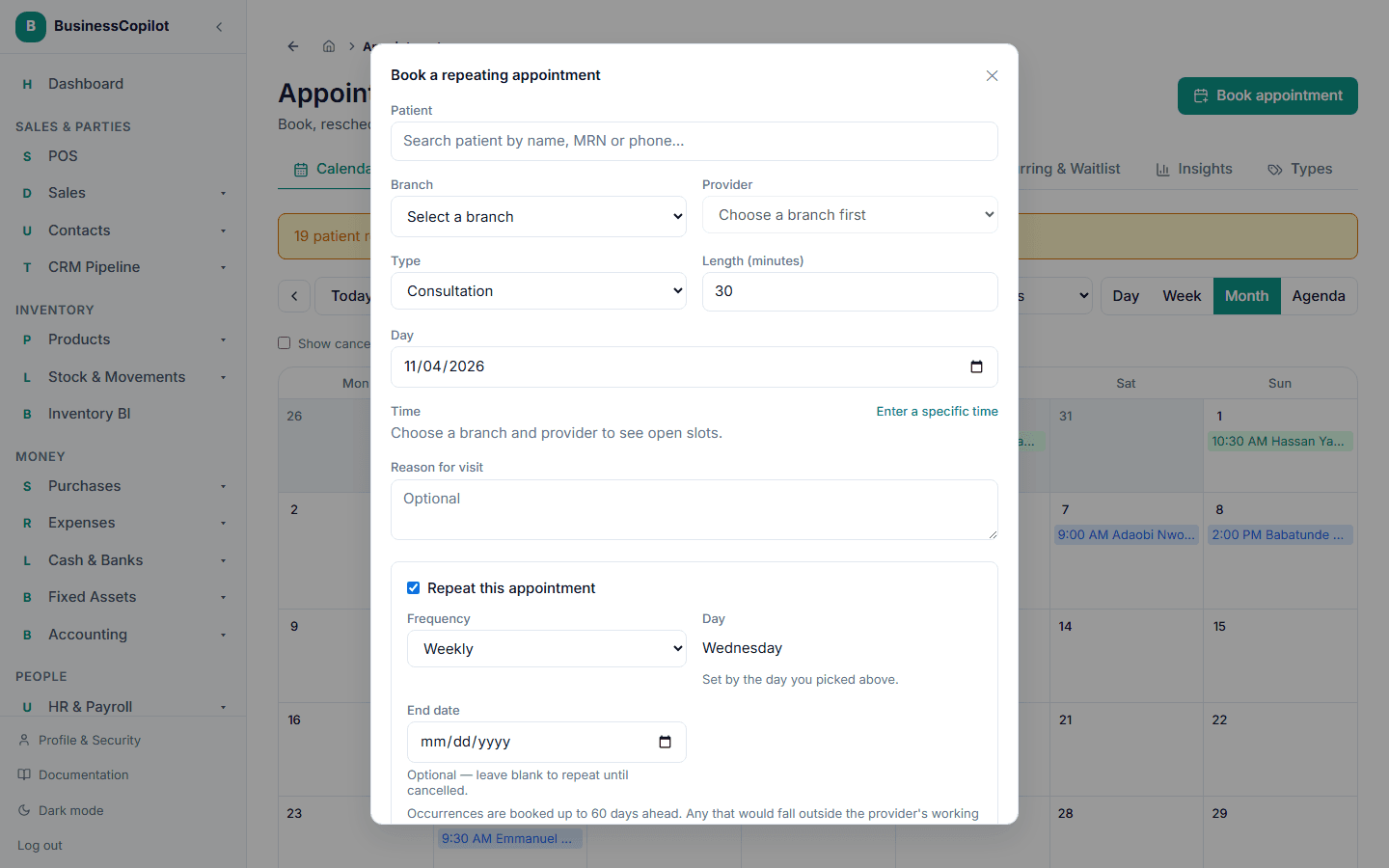
The button changes to Create series and the title to Book a repeating appointment once you tick the box.
How far ahead it books
BusinessCopilot books the visits up to 60 days ahead, and every morning it adds more so there are always about 60 days on the calendar. Each visit is a real, separate appointment — it appears on the calendar, gets its own reminders and its own confirmation link, exactly like one you'd booked by hand.
When a date doesn't work
A repeated visit is checked against the provider's schedule just like any other booking. If a date falls on a day the provider isn't working, during a break, or during time off, it is skipped and not booked. Nobody is booked into a time they can't be seen.
When that happens, your team is told: an alert appears in your Alert Center — "A recurring series couldn't book 2 occurrence(s) — the provider isn't working then: …" — listing the dates. That gives your team the chance to sort those out by hand. The alert clears itself once there are no gaps.
Seeing your series
Go to the Recurring & Waitlist tab on any Appointments page (or the Recurring chip on the mobile app). The Active recurring series section lists each series with how often it repeats.
Changing or cancelling part of a series
Open any appointment that belongs to a series. It shows Part of a recurring series. When you select Reschedule or Cancel appointment, you're first asked how far the change should reach:
- Just this occurrence — only this one changes. It's then marked as individually customised.
- This and every occurrence after it
- Every occurrence in the series
Moving the time of a series
Choose This and every occurrence after it or Every occurrence in the series on Reschedule, then:
- Set the New time of day (24-hour, like 14:30).
- Select Update series.
The time moves for the chosen visits. Only the time of day changes this way — to change the day or the provider, cancel the series and start a new one.
Cancelling part or all of a series
Choose the wider scope on Cancel appointment, then:
- Give a Reason — required.
- Select Cancel this and following or Cancel all.
The chosen visits are cancelled, and the series stops so no more are added.
Your own edits are protected
If someone reschedules or cancels just one occurrence, that occurrence is remembered as customised. A later "this and every occurrence after it" or "every occurrence" change skips it — so a special one-off arrangement is never silently overwritten.
Stopping a series
On the Recurring & Waitlist tab, select Stop series next to it and confirm: "Stop this series and cancel its untouched future appointments?" — Yes, stop it.
"Untouched" means visits nobody has individually changed. Past appointments stay as they are.