The waitlist
Keep a list of patients who want an earlier appointment, and be told when a cancellation opens one up.
A patient wants to see Dr Bello this week, but every slot is taken. Instead of writing their name on a piece of paper, put them on the waitlist. When someone cancels, BusinessCopilot tells your team that a waiting patient matches — so the freed slot goes to someone who wants it.
You need Create to add someone, and Edit to mark them booked or remove them.
Adding someone to the waitlist
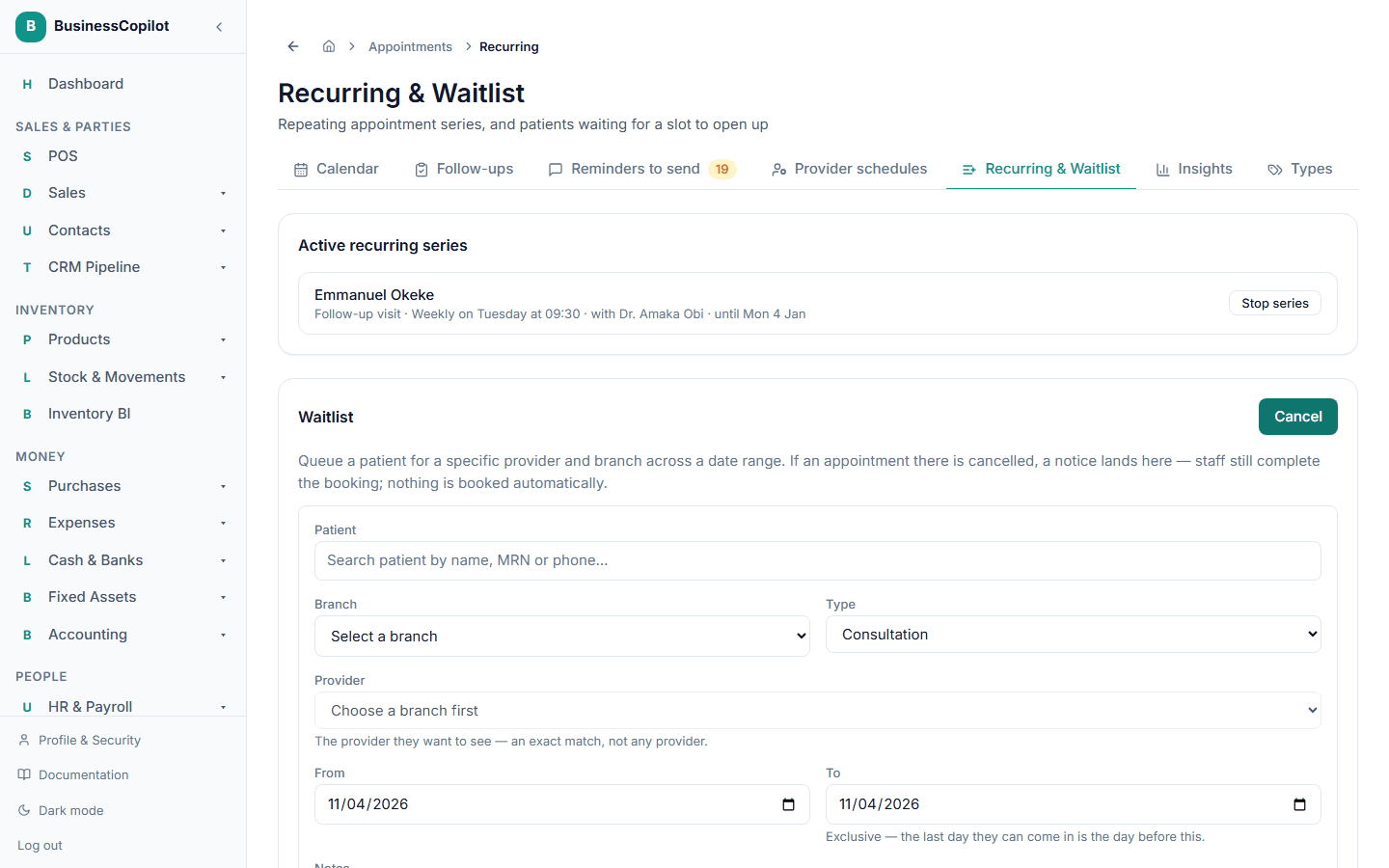
- Go to the Recurring & Waitlist tab (Recurring chip on the mobile app) and find the Waitlist section.
- Select Add to waitlist.
- Choose the Patient.
- Choose the Branch.
- Choose the Type of appointment they want.
- Choose the Provider. This is an exact match: "The provider they want to see — an exact match, not any provider."
- Set the dates they're happy to come in: From, and To. The To date is exclusive — the last day they can come in is the day before it. So From 22 Sep and To 27 Sep means they can come any day from the 22nd to the 26th.
- Add Notes if you like (optional).
- Select Add to waitlist.
How a match is found
Every time an appointment is cancelled, BusinessCopilot checks the waitlist for anyone who:
- wants the same provider, at the same branch, and
- has a date range that includes the freed day.
Only a cancellation starts a match. Moving an appointment to a different time (rescheduling) does not.
What happens on a match
- The waiting patient's status changes from Waiting to Slot available.
- Your team gets one alert per branch in the Alert Center: "1 waitlisted patient matches a cancelled appointment" (or "3 waitlisted patients match…").
- Nothing is booked for you, and the patient is not messaged. BusinessCopilot only tells your staff. A person contacts the patient, agrees the time, and books it — this is deliberate, so nobody is booked into a slot they haven't agreed to.
After you've contacted them
- Book the appointment in the usual way — Booking an appointment.
- Back on the waitlist, select Mark booked next to their name.
The status becomes Booked. Once nobody is left in Slot available, the alert clears itself.
If they no longer want a slot, select Remove — the status becomes Withdrawn.
The statuses
| Status | Meaning |
|---|---|
| Waiting | On the list; no matching cancellation yet. |
| Slot available | A cancellation matches — your team should contact them. |
| Booked | Your team booked them and marked it. |
| Withdrawn | Removed from the list. |
With nobody waiting the list says "No one is waiting right now."
Entries don't remove themselves. When a patient's date range has passed, they stay on the list as Waiting — they simply can no longer match anything. Select Remove to tidy them away.
Tips
- Use a wide date range if the patient is flexible — narrower ranges match less often.
- If a patient would happily see any provider, add them once per provider you'd accept.
- If your day is too full to phone people, the alert still tells you how many are waiting.
Related
Recurring appointments
Book a repeating appointment — daily, weekly or monthly — and change or stop the whole series in one go.
Your own appointment and follow-up types
Add your own kinds of appointment (with a usual length) and follow-up next to the built-in ones, rename them, and switch them off when you stop using them.