Drug Information Center
How to search drug monographs, look up safety information, create therapy plan templates, and get AI-generated medication counselling points in the Clinical Suite.
The Drug Information Center gives your team access to a full drug database (powered by MedSafe, a Nigerian NAFDAC-aligned drug information service) without leaving BusinessCopilot. Search for any drug, read its monograph, check its safety profile for specific patient populations, and generate counselling points to relay to patients.
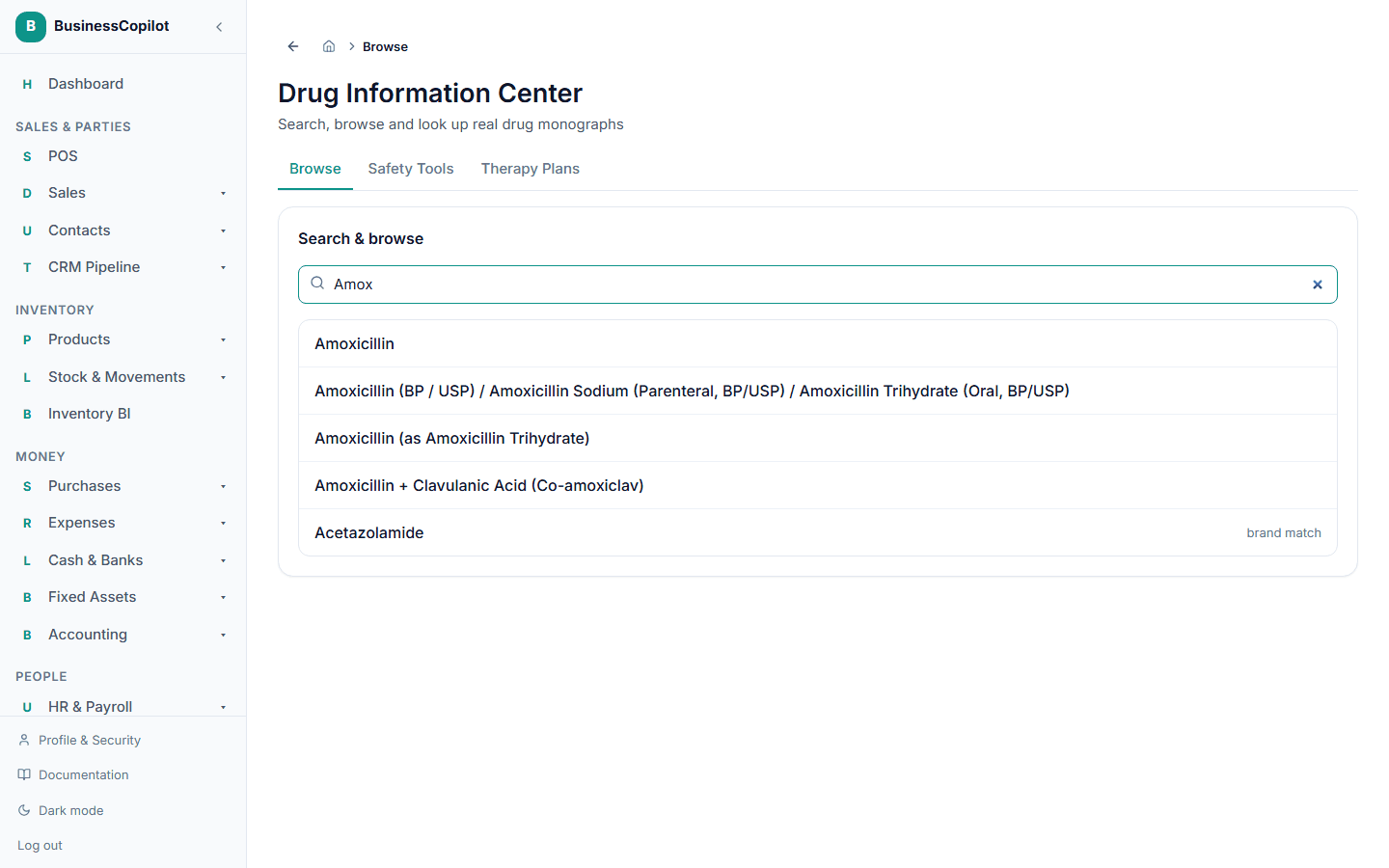
Finding a drug
Go to Clinical Suite → Drug Information (Web and Desktop sidebar), or tap the Drug Info chip on the mobile app's Clinical Suite sub-nav.
You can find drugs in two ways:
Search — type a drug name, active ingredient, or brand name in the search bar. Results appear as you type. Select any result to open the monograph.
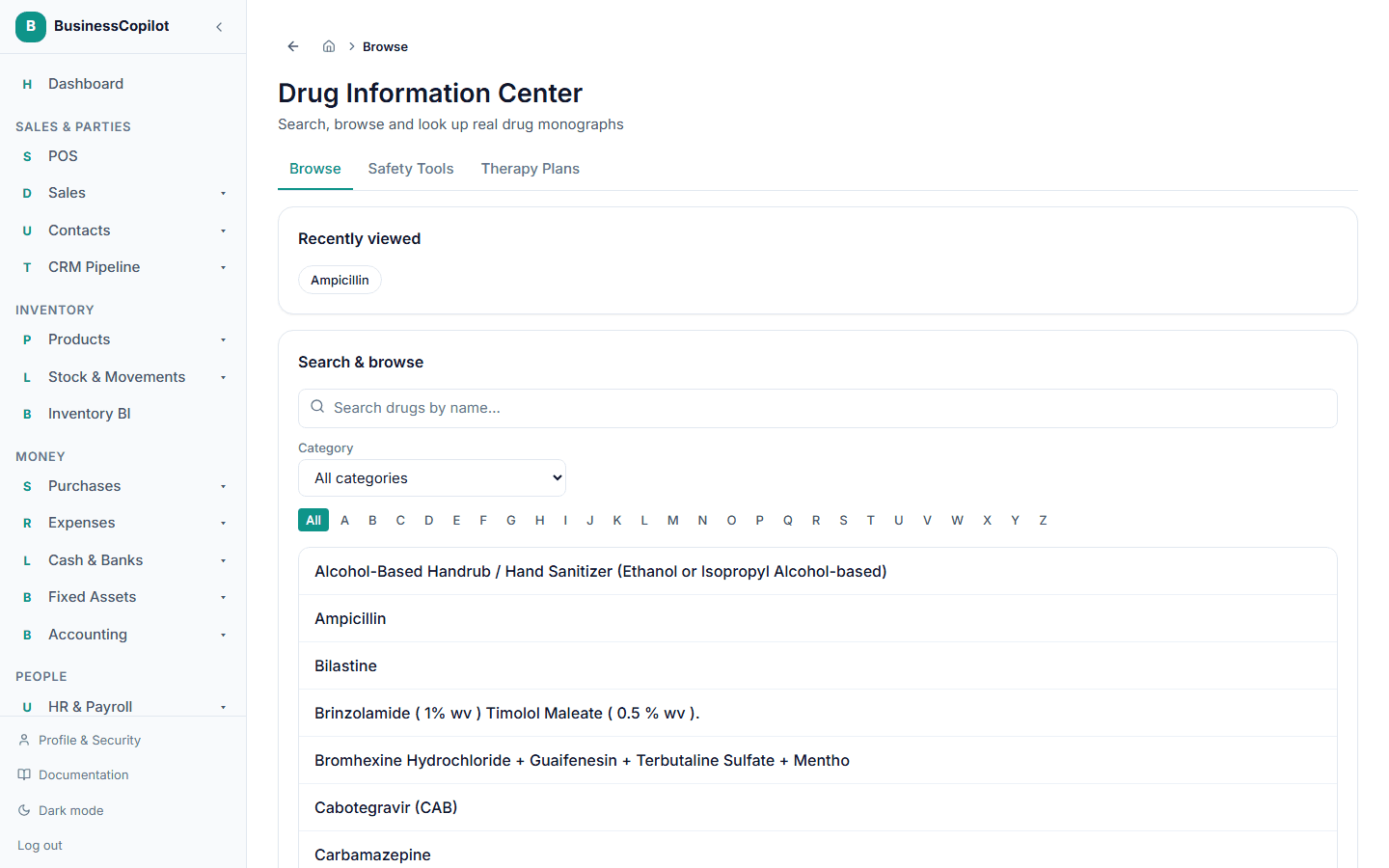
Browse — use the letter strip (A–Z) or select a category from the list. Both modes give you a paginated list of matching drugs.
Recently viewed drugs appear as chips below the search bar — one tap returns you to a drug you looked up earlier in the same session.
Reading a monograph
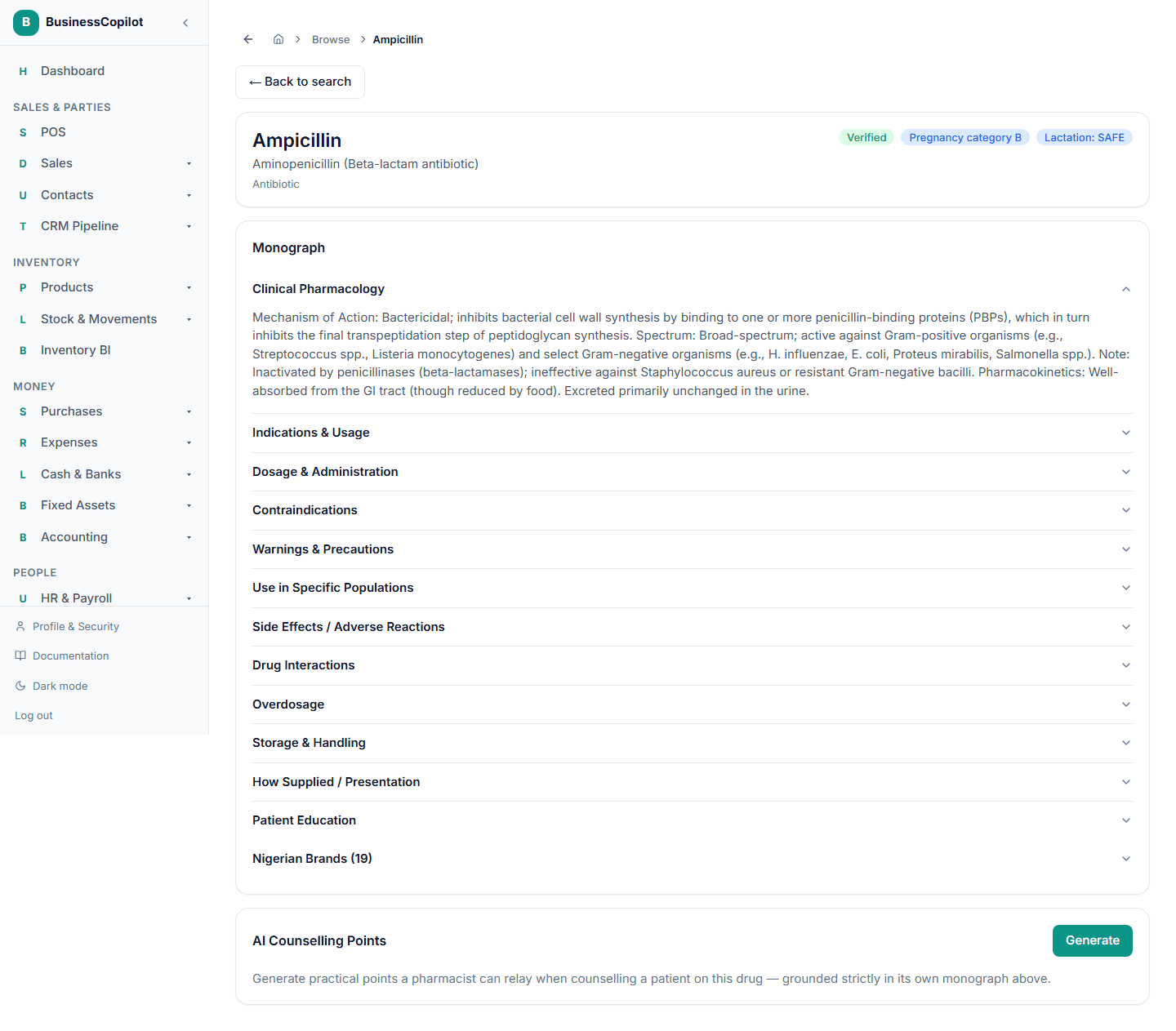
A drug's monograph page is laid out in numbered sections, matching the standard drug-information card format:
- Indications and clinical uses
- Dosage and administration
- Contraindications
- Warnings and precautions
- Adverse effects
- Drug interactions
- Pharmacokinetics (absorption, distribution, metabolism, excretion)
- Pharmacodynamics (mechanism of action)
- Special populations
- Drug stability and storage
- Brand names and pricing information
- Patient counselling information
- References
Not every section is populated for every drug. Where MedSafe's data doesn't cover a section, the accordion is hidden rather than shown empty.
Safety checks
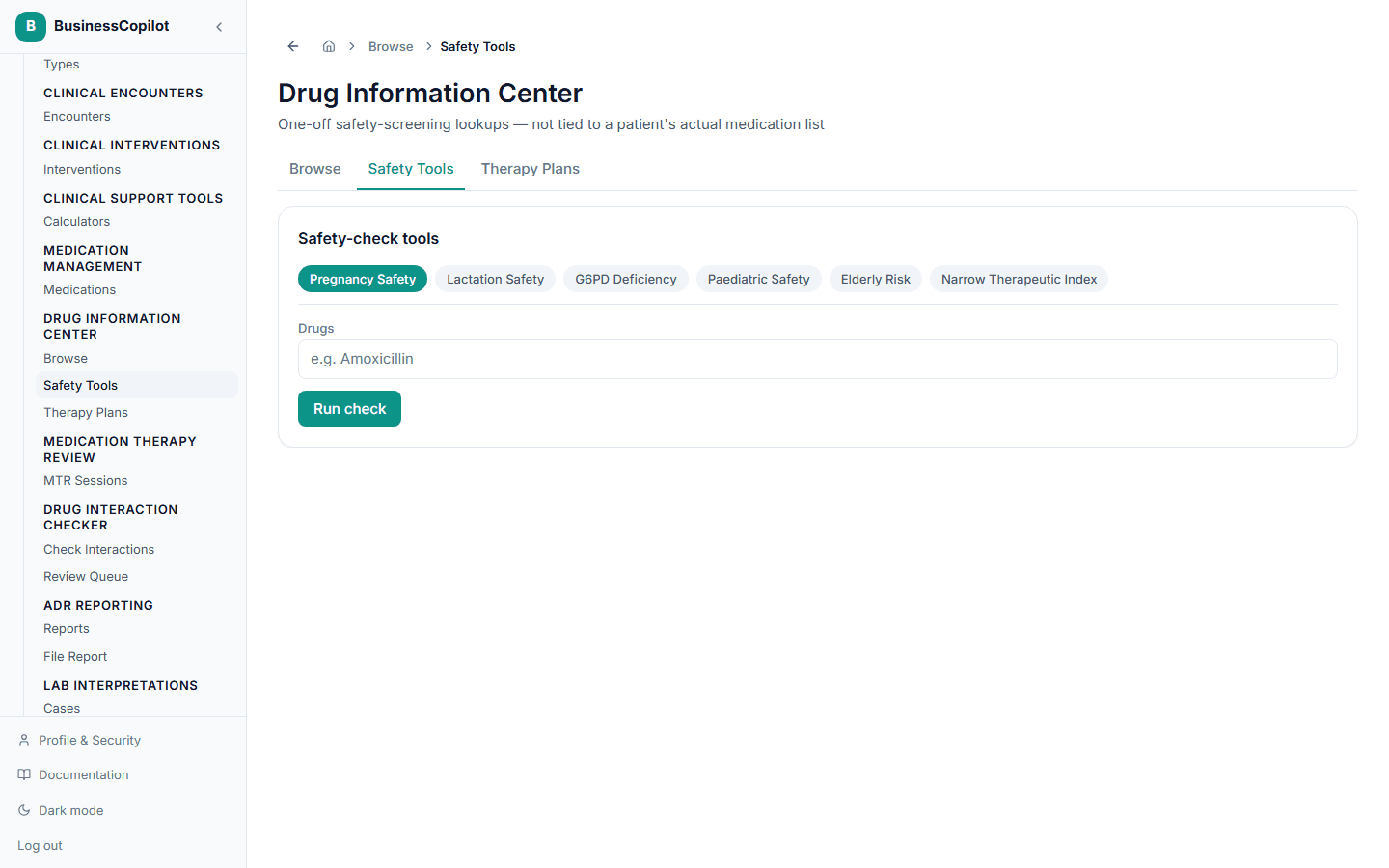
From a drug's monograph page, select Safety Checks (or scroll to that section). The system runs six targeted checks for patient-specific risk:
| Check | What it looks for |
|---|---|
| Pregnancy | Risk category and trimester-specific guidance |
| Lactation | Whether the drug passes into breast milk and at what levels |
| G6PD deficiency | Whether the drug is contraindicated or requires caution in G6PD-deficient patients |
| Paediatric use | Age and weight restrictions, paediatric dosing guidance |
| Elderly patients | Dose reduction, Beers criteria considerations |
| Narrow therapeutic index | Whether this drug requires tight monitoring |
Each check returns a risk level (Safe / Caution / Avoid / Monitor) and a short clinical rationale.
AI medication counselling
After reading a monograph, select Counsel with AI to generate patient counselling points. The AI reads the monograph text you're viewing and returns:
- What the medication is for (in plain language)
- How and when to take it
- What to watch for and when to call a healthcare provider
- Important food or lifestyle interactions
- Common questions patients ask
This is not patient-facing text — it is a set of speaking points for your pharmacist or clinician to relay out loud, in their own words, adapted to the patient in front of them.
Before the AI call is made, you see a preview of what is sent. Only the monograph content is included — no patient identity is ever sent.
AI counselling requires the Clinical AI Usage add-on. See Clinical AI: enabling it and managing tokens.
📸 Screenshot needed: the AI counselling panel with a set of bullet-point counselling points visible.
Therapy plan templates
A therapy plan is a reusable workspace reference template — a drug or combination of drugs with your team's preferred dosing protocol, monitoring parameters, and clinical notes. Therapy plans are not patient-specific; think of them as your pharmacy's own clinical quick-reference cards.
To create a therapy plan:
- Select Therapy Plans from the Drug Information Center page (or the tab at the top of the page).
- Select New plan.
- Give it a name, add one or more drugs (using the same search/autocomplete as everywhere else), and add any monitoring parameters, notes, or follow-up instructions.
- Save.
Plans appear in the Therapy Plans list for the whole workspace. Any team member with View access can read them; Create and Edit access is needed to add or change them.
Search history
Every time a pharmacist opens a drug's monograph (not just types in the search box), that look-up is logged to a personal search history. This is private to each user — not branch-shared.
Permissions
The Drug Information permission line controls access to the Drug Information Center and therapy plans. View is enough to search and read monographs; Create and Edit are needed for therapy plans.
Related
Medication Management
How to maintain a patient's active medication list, track adherence, and set up refill and adherence alerts in the Clinical Suite.
Drug Interaction Checker
How to check for drug interactions, review the results, and get an AI second opinion on a patient's medication list in the Clinical Suite.