Selling products with options
Sell one product that comes in sizes or colours by choosing the option at the checkout screen.
A product with options is one product that comes in several versions, such as examination gloves in Small, Medium and Large. Each option has its own stock, and can have its own price and barcode.
You create the options on the product page. See Adding a product. This page covers selling them.
Add an option to the cart
- Go to Sales → POS.
- Search for the product and select it.
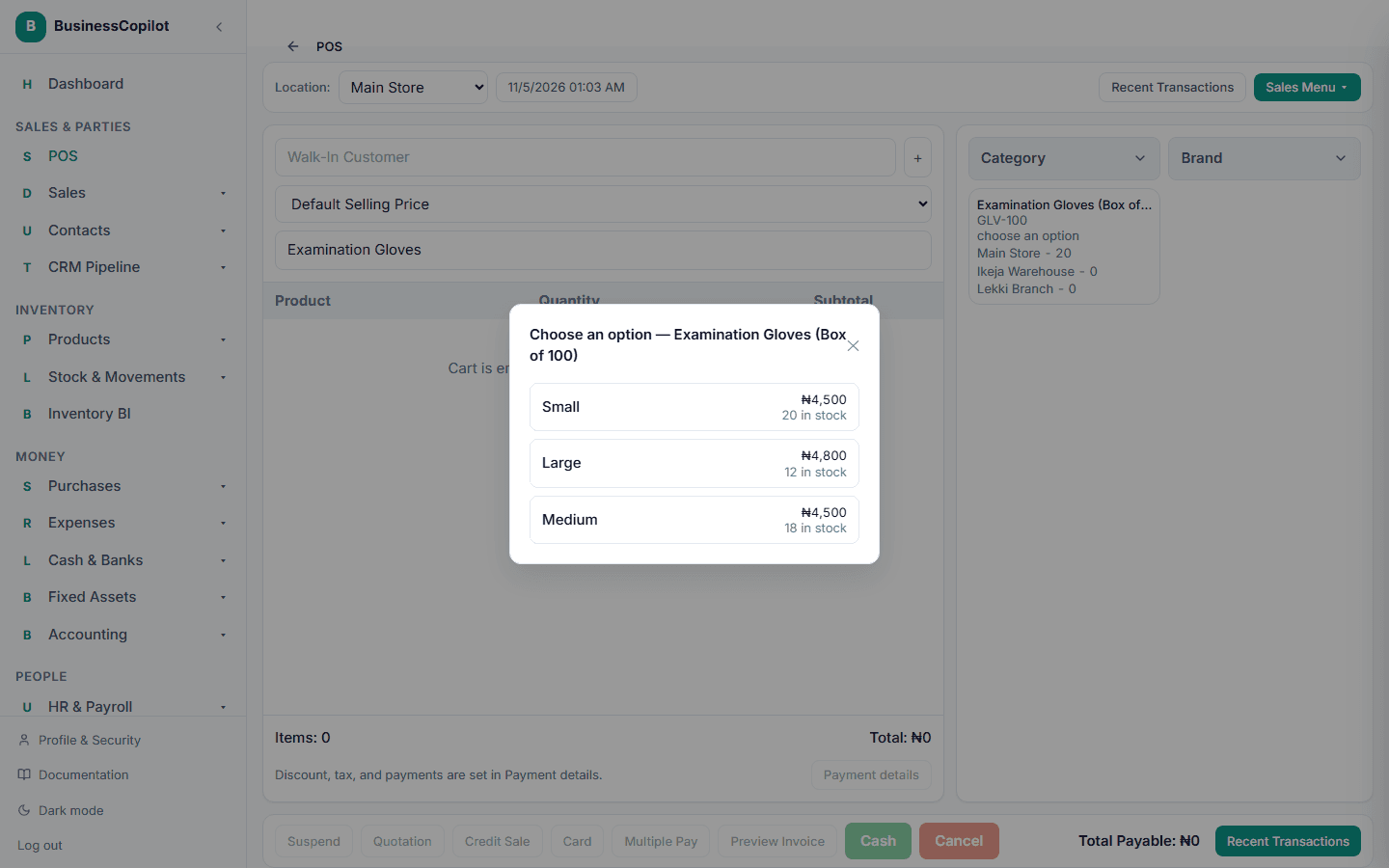
- A list of its options opens. Each shows its name, its price and how many are in stock.
- Select the option the customer wants.
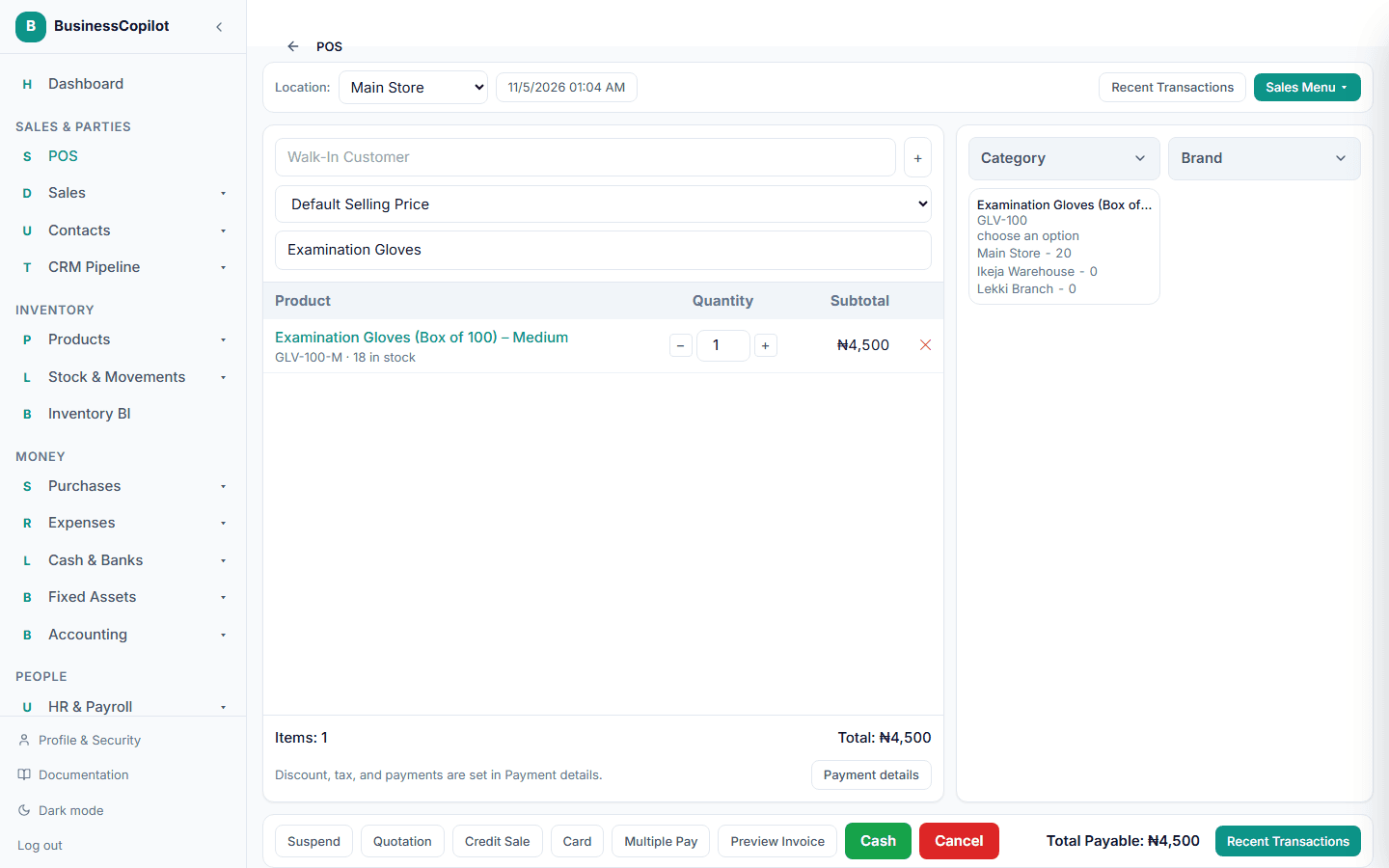
The option is added to the cart, and its name is part of the line.
An option that is out of stock cannot be chosen, unless your business allows selling below stock.
Scan an option's barcode
Scanning an option's own barcode, or typing it in the search box and pressing Enter, adds that exact option straight away. The picker does not open.
Prices
An option with no price of its own sells at the product's price. You only need to enter a price on the options that differ. In the gloves example, Large has its own price and Small and Medium use the product's price.
What happens to stock
Selling an option takes stock from that option only. The other options are not touched.
A product with options cannot be sold without choosing one. If you try, you are asked to choose an option. This is what keeps each option's stock correct.
The desktop app needs a connection to choose an option. Offline, it tells you to reconnect.
Receipts, returns and drafts
- The receipt and the sale's detail page print the name with the option, such as "Examination Gloves (Box of 100) – Medium".
- A return puts the stock back into the same option.
- A saved draft or quotation keeps the option on each line.
Options and units work together. In Units mode Option 2, a product with options can also have a primary and a secondary unit, and every option uses them.